Office365 Mail
For more details, please refer to the notice.
- Overview
- Usage Guide
- Restrictions
- Resources & Manuals, etc.
- Matters Concerning Mail Migration
- Regarding the use of email for the university's business (Notification)
- FAQ
- Can it be used with the email app on smartphones?
- Can I forward emails to a mobile phone?
- I want to change the sender's display name
- Please tell me the points to note when using the university's email for job hunting
- I forgot my email address
- I forgot my Office365 email password
- I can't find the email that I was supposed to have received
- Failed to send email
- Is the email address for faculty "~@mail", and for students "~@ms"?
- Please tell me how to forward the email itself
- I forgot to set the time zone when I signed in for the first time
- Should I check the spam folder?
- Can I set up a blacklist and a whitelist?
- An error mail (NDR) has been returned to the sender. However, an email has arrived in the inbox.
Overview
At Saitama University, we are utilizing Microsoft Office 365 Education.
We call the cloud email service in it "Exchange Online" as "Office365 Mail", and we are providing it to all users.
Eligibility
All students and teaching staff of the university can use this service.
Cost
There is no cost for users.
Application Method
No special application is required.
University-wide unified authentication account holders, who also have the "eligibility to use" mentioned above, can use it.
Usage Guide
The email address for Office365 Mail is listed on the distributed "Unified Authentication Account Notice".
If you happen to forget it, please refer to the FAQ "I forgot my email address".
About Multi-Factor Authentication
The university's mail system has introduced multi-factor authentication. Please check here for the setting method and other details.
Web Mail
We provide a manual for Outlook on the Web (formerly OWA) to send and receive emails on the web browser.
However, please understand that this does not always guarantee solving the problem.
The URL for signing in is listed in the manual. Alternatively, you can use the link in the quick link on the right.
Email Software & Smartphone (Exchange connection)
Outlook, Windows Mail, and Apple Mail (macOS 10.14 and later) connect via Exchange.
There is also a method of using the Outlook app in the case of smartphones (Android, iOS).
・Outlook app for Android
・Outlook app for iOS
Email software (IMAP connection)
In email software where IMAP connection support is clearly stated in this announcement, it is possible to send and receive emails using the setting information below.
Please note that we will continue to provide this service as is.
While we do accept reports of issues, we may not always be able to resolve the problem.
| Receiving Mail (IMAP) | Mail Sending (SMTP) | |
|---|---|---|
| Encryption Method | SSL | STARTTLS (TLS) |
| Port Number | 993 | 587 |
| Server Name | outlook.office365.com | smtp.office365.com |
| Authentication Method | OAuth2 | OAuth2 |
| Account Name | Email Address ※ Do not omit the @(mail|ms).saitama-u.ac.jp part! |
|
Restrictions
There are some restrictions when using this email system.
- Size of emails
The total size of the body and attachments combined can be up to approximately 40MB. - File Attachment Restrictions
Some file extensions cannot be attached to emails (e.g., .exe .pif .scr .vbs).
In such cases, please consider exchanging files through other means. - You cannot falsify the From address
The From can only be the user's own Office365 email address (~@ (mail|ms).saitama-u.ac.jp). - You can no longer set the address 'display name' in email software, etc.
Please refer to the announcement dated November 1, 2018 for the reasons for introducing this restriction.
Please set it according to the method on this page. - Securing email software security
If you are using email software or apps, you should use the latest version as a rule, and do not use discontinued products. - Please do not send an exceptionally large number of emails
If you have negatively affected other users or sent mail suspected of being spam, emergency measures may be taken as necessary.
(Please check Microsoft's information for details on restrictions by Office365)
Documents and Manuals, etc.
Guide to Using Web Mail
- Operation Edition Sign-In and More (PDF)
- Operation Edition Send/Receive and More (PDF)
- Setting Edition (PDF)
PC Email Software
- Usage in Email Software (Outlook Version)
(If you refer to Microsoft information, go here)) - Usage in Email Software (Thunderbird Version)
- About POP and IMAP
- Usage on Smartphone (Android Edition)
- Usage on Smartphone (iOS Edition)
- About POP and IMAP
- Usage on Smartphone (Android Edition)
- Usage on Smartphone (iOS Edition)
- Usage on Email Software (Outlook Edition)
- Usage on Email Software (MacOSX Standard Mail Edition)
Use on smartphones and other mobile devices
- About use on iOS devices
- How to use with the built-in iOS mail app (Microsoft)
- About the iOS version of Microsoft Outlook app (Microsoft)
- About Android apps
- How to use the built-in mail app on Android (Microsoft)
- About the Android version of Microsoft Outlook app (Microsoft)
Matters Related to Email Migration
The migration from the conventional system (the university's server) to the Office365 email was completed by 2018 for the Saitama University's email system.
Regarding the use of email for university operations (Notice)
At Saitama University, we may contact you via email addressed to Office365 for various notifications.
Please check your emails regularly.
Also, please note that we may disclose your Office365 email address to departments necessary within Saitama University.
FAQ
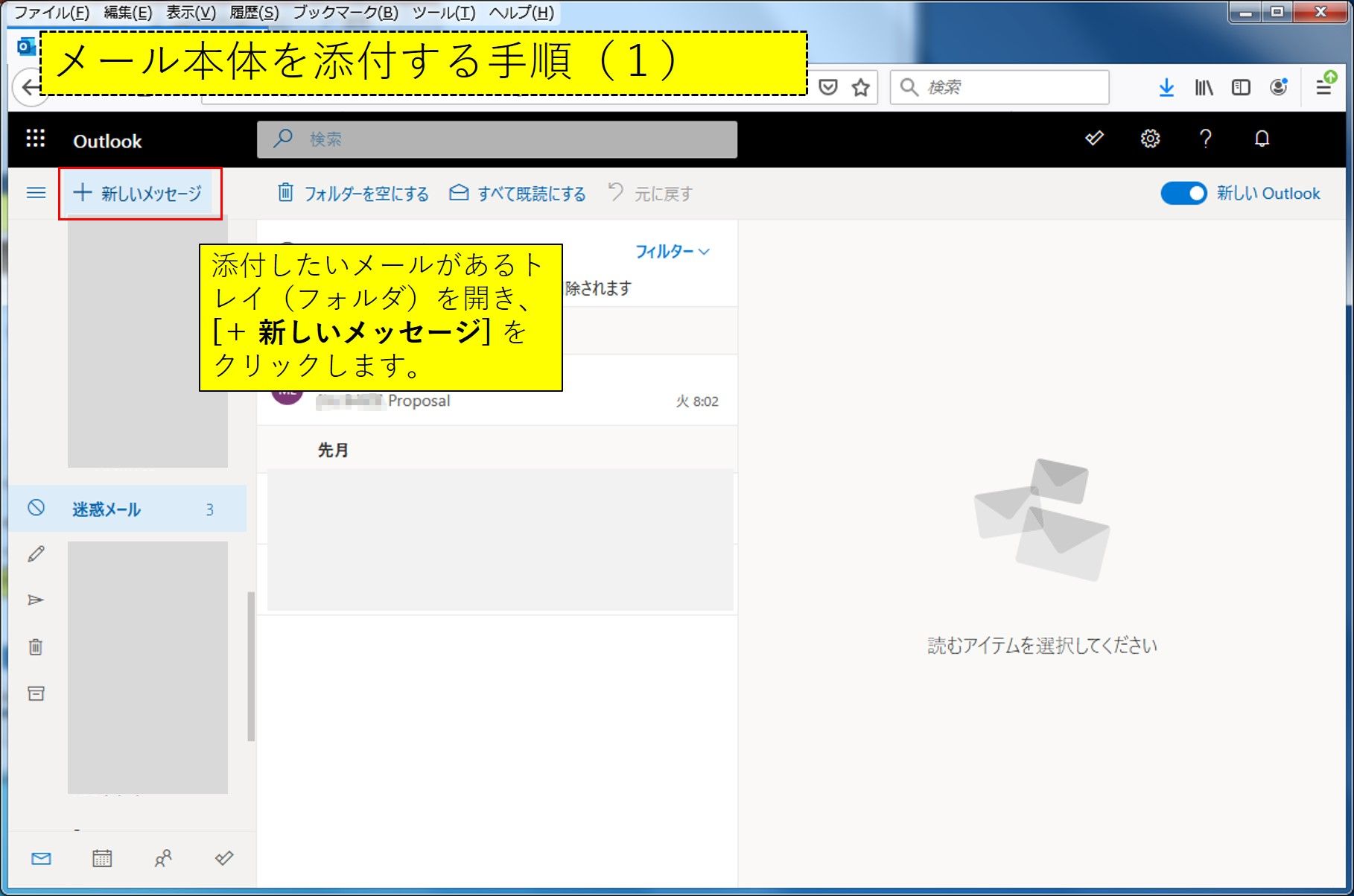
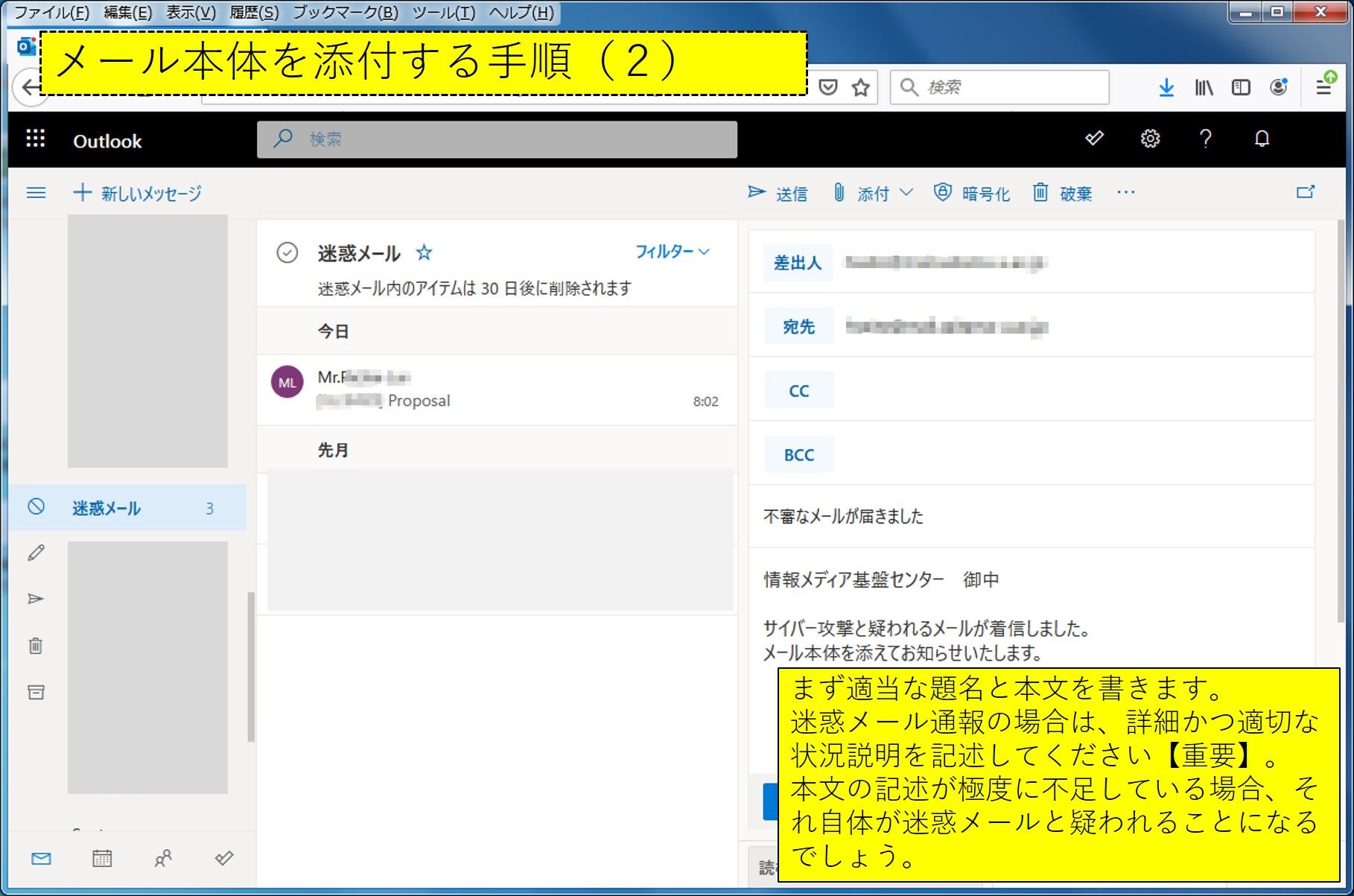
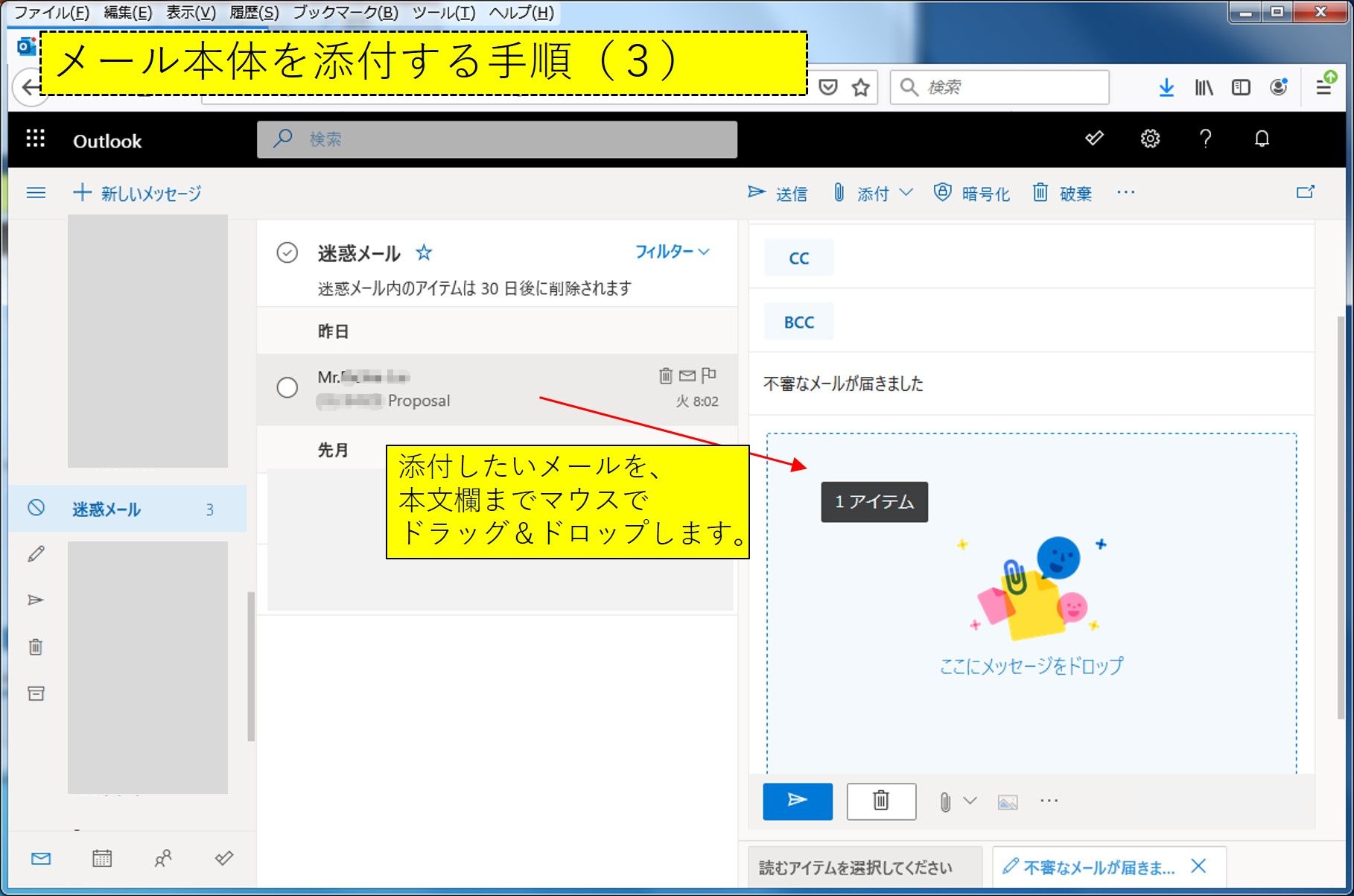
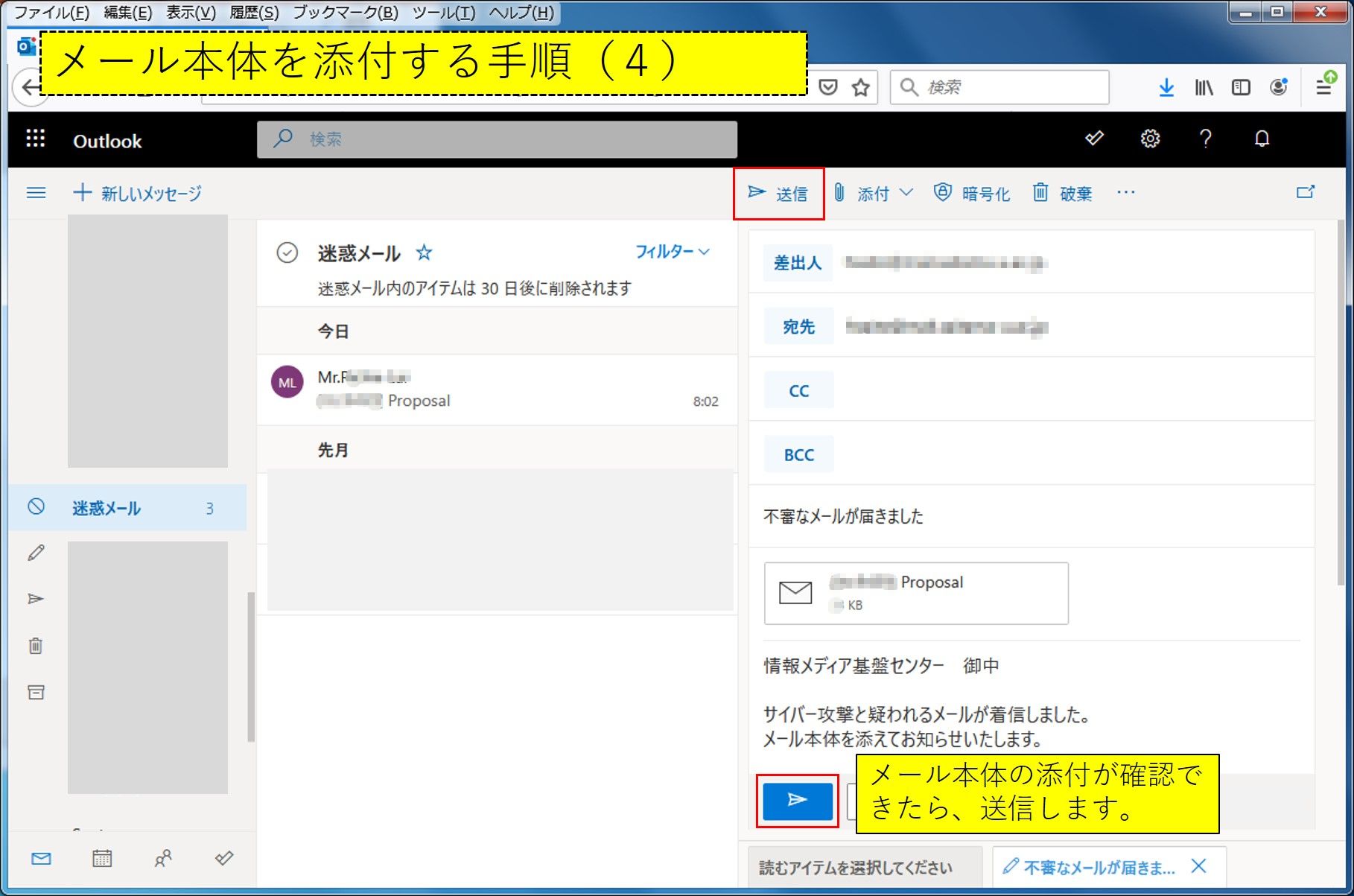
The procedure is shown in the images below.